Tables and QR codes
Creating tables, bulk creation, table status, and what to do when one won't delete.
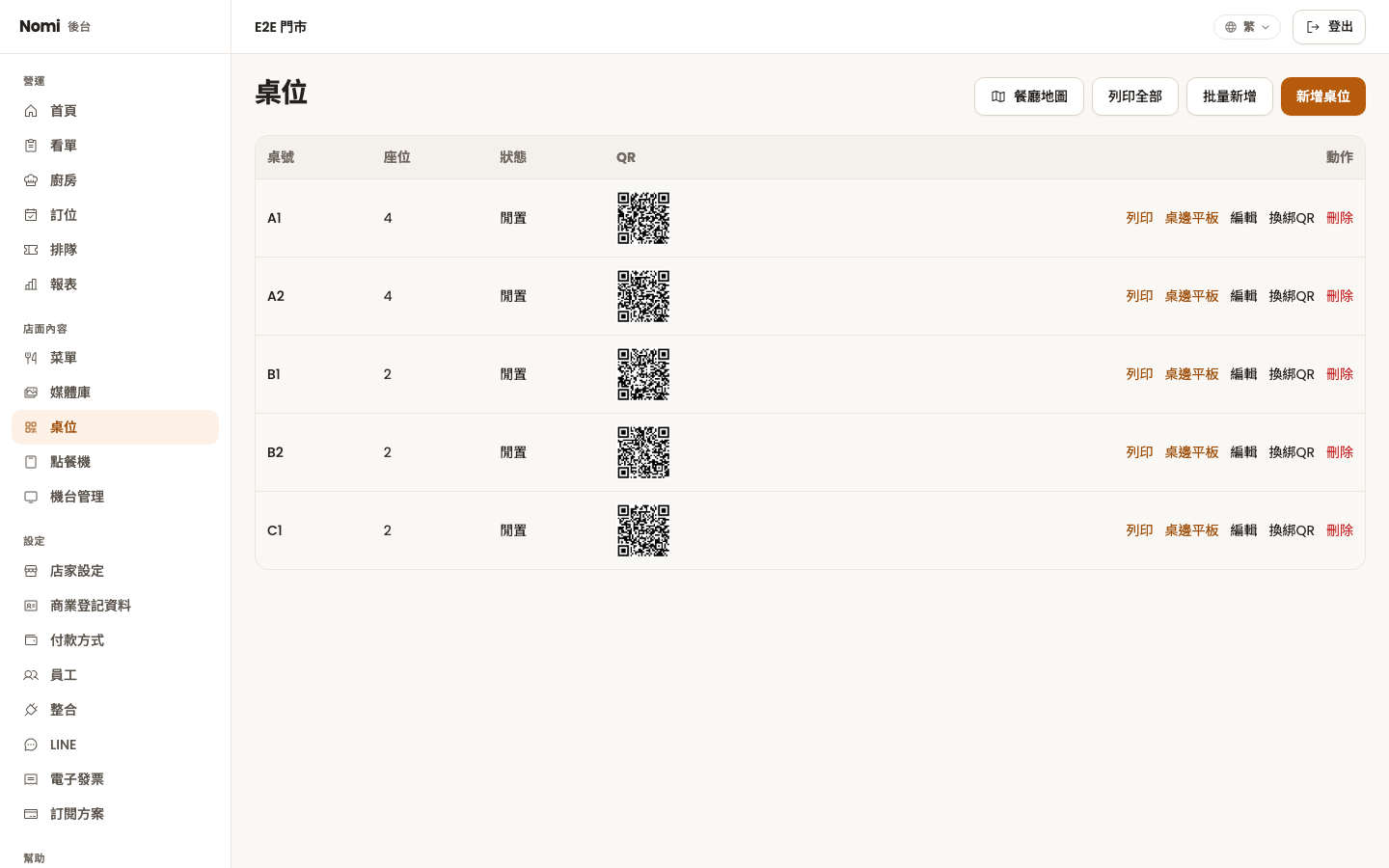
If you serve dine-in, you need tables. Each one gets its own QR code; scanning it opens the table and starts an order.
Go to "Tables" in the left menu.
Creating tables
One at a time: press "Add table", enter a label and a seat count.
In bulk: press "Bulk add", enter a prefix and a count. Prefix A × 10
produces A1, A2 … A10, each with its own QR code.
Most stores do one bulk add and never touch it again.
Table status
| Status | Meaning |
|---|---|
| Free | Nobody there |
| Seated | A customer scanned this table's QR; the table is open |
| Reserved | Reserved |
Floor map
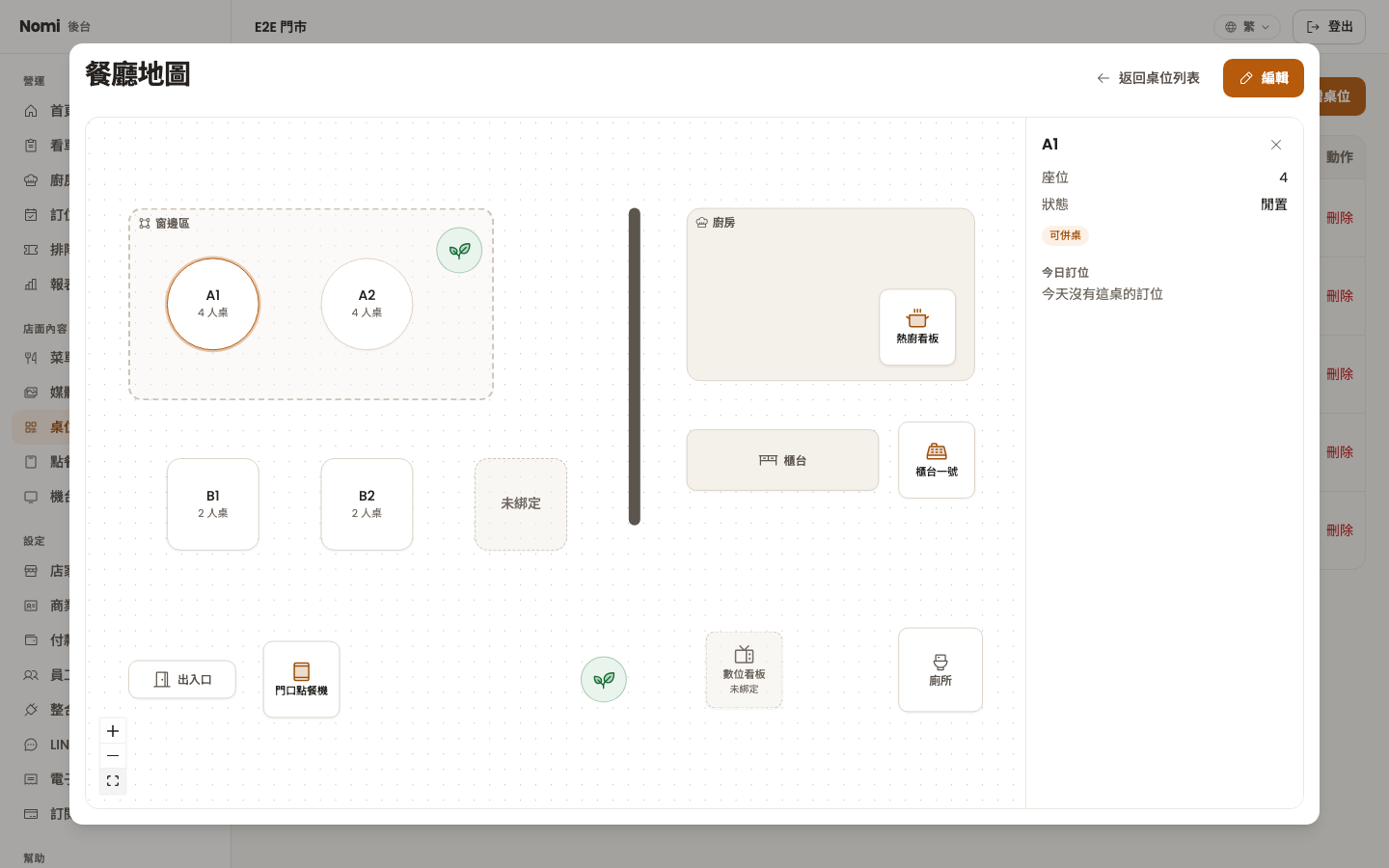
Once you have more than a few tables, a list can't tell you where each table sits. Press "Floor map" at the top right to lay your tables out the way the room actually looks:
View mode is for staff seating guests: one shape per position, linked tables show their label and seat count, unlinked positions are dashed grey. Table status refreshes every 8 seconds. Click a table to open its side panel: seats, current status, and today's reservations (time, party size, name).
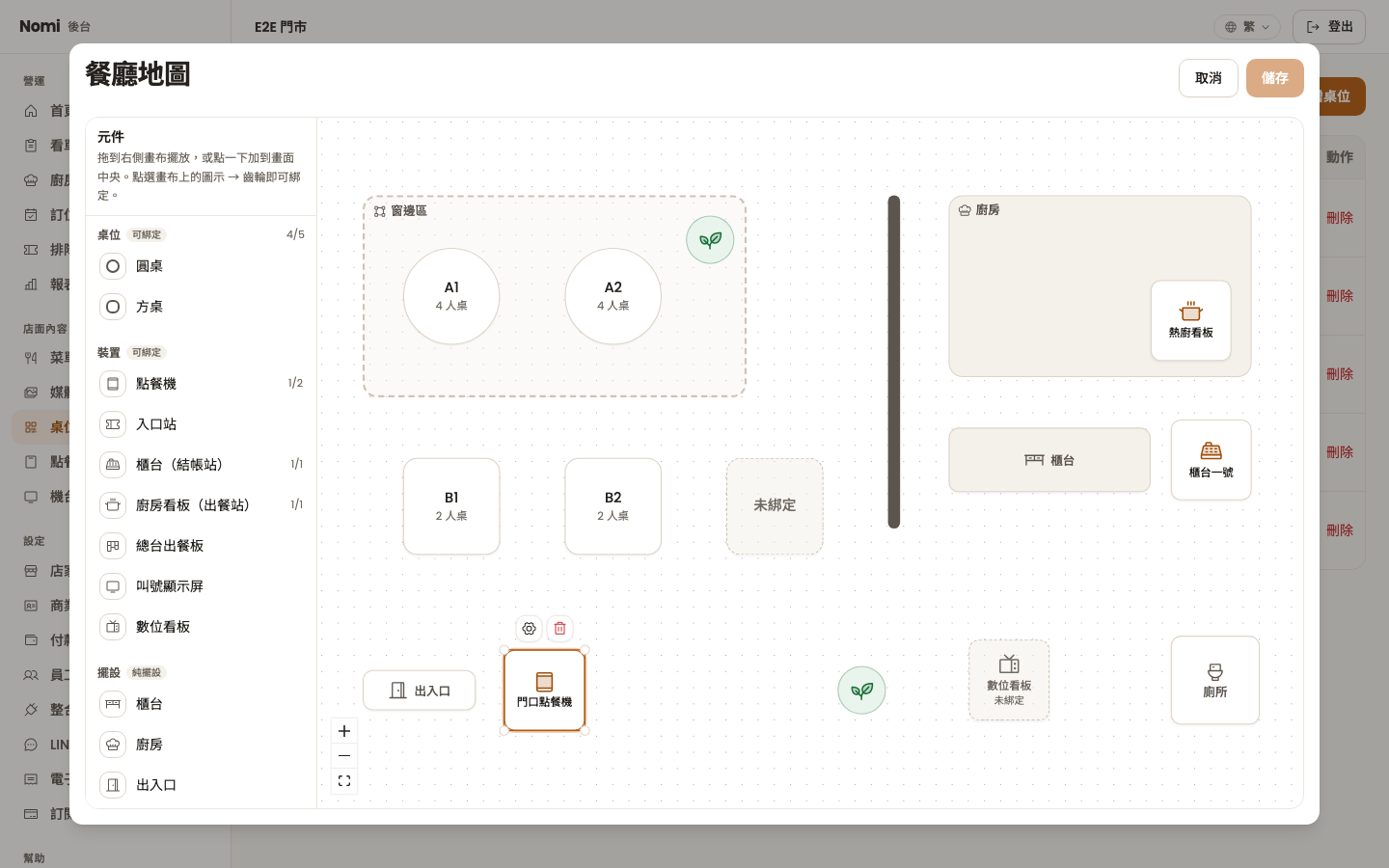
Edit mode (top right "Edit") is where you arrange positions: the element list is on the left, the canvas on the right.
- Drag an element from the list onto the canvas (or click it to add one in the
middle). The list has three groups:
- Tables (round / square): linkable to a table
- Devices (one per device type: kiosk, checkout counter, kitchen display…): linkable to a device
- Fixtures (counter, kitchen, entrance, restroom, wall, plant, area): just mark a spot, nothing to link
- The "1/3" next to tables and each device type means placed / total, so you can see what's still missing
- Drag to move, drag a corner to resize (tables and devices keep proportions; walls and areas stretch freely)
- Click an element to pop its toolbar: the gear opens settings (double-click works too), the trash can removes it
- Press "Save" when done. If someone saved from another computer first, you'll get a version conflict prompt; reload and redo your change
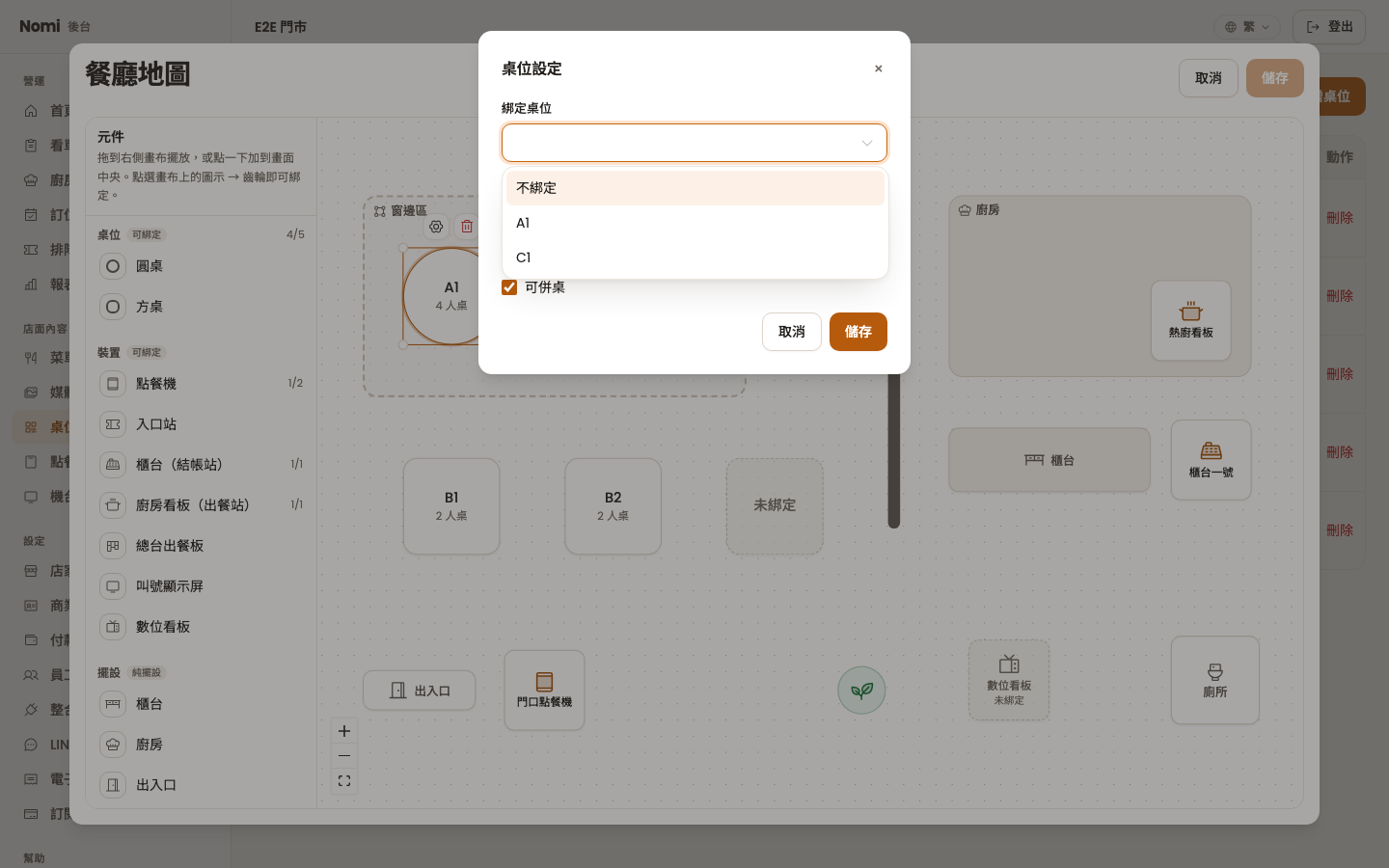
The key field in the table settings is "Linked table": a table can only be linked to one position. The dropdown only lists tables not linked anywhere else (plus this position's current table), so the same table can never end up in two places. Ticking "Mergeable" marks the position as combinable with its neighbors (think a private room that splits into two tables) and shows a "Mergeable" badge in view mode.
Devices work the same way: "Linked device" only lists devices of the same type that aren't placed elsewhere (drag a "Kiosk" and you can only link a kiosk, a "Staff workstation" only a workstation). If you don't have one of that type yet, add it under Devices.
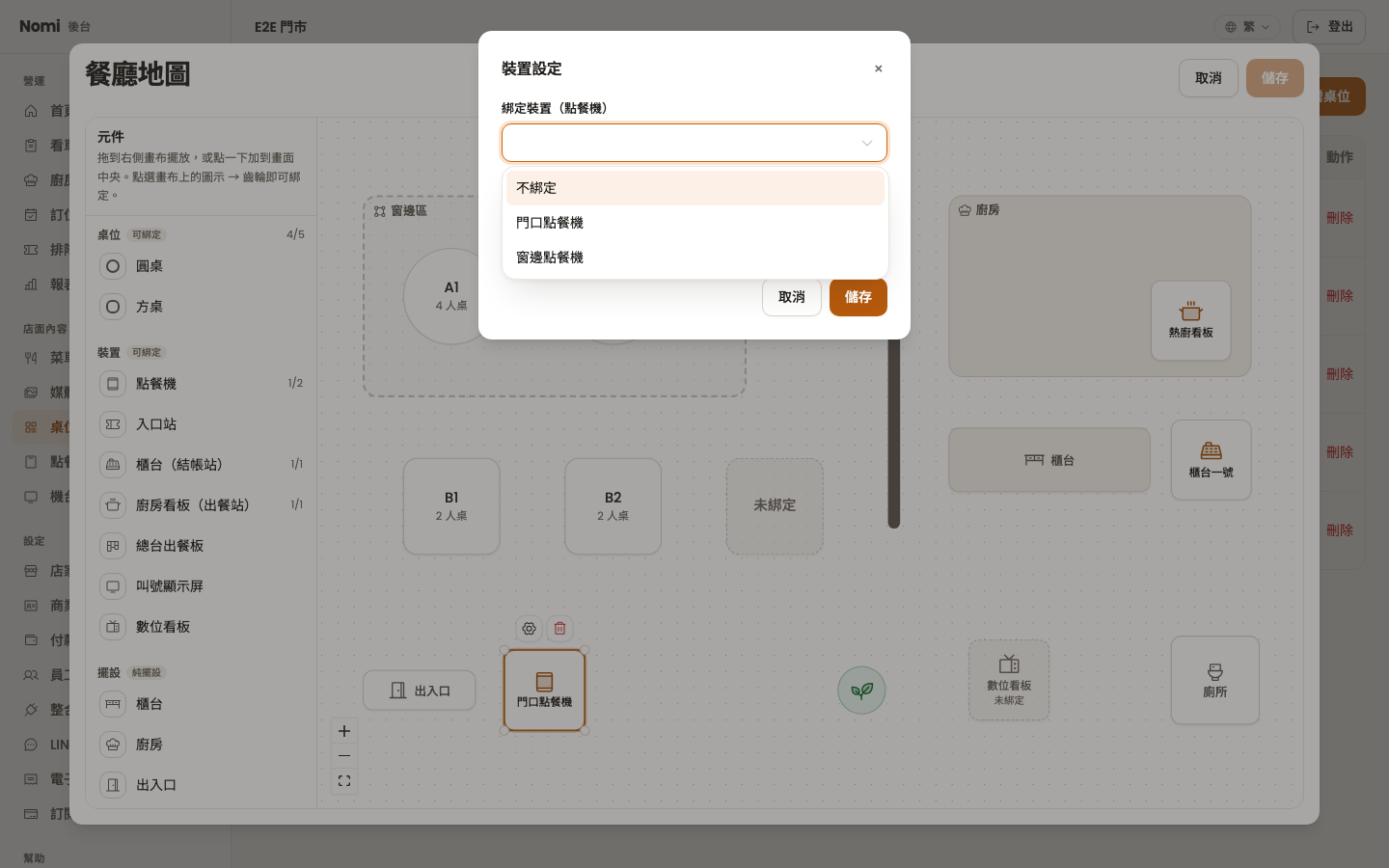
In view mode, clicking a device icon shows its type in the side panel with a link to Kiosk devices. If a device is deleted, its icon on the map goes back to "Not linked"; link another one or remove it.
Fixtures only have a custom name (for example rename "Counter" to "Bar"), and clicking one in view mode doesn't open a panel.
The floor map doesn't affect QR ordering
The floor map is a layout map for staff: customers scanning a QR to order and table-side tablets pinned to a table work exactly the same whether or not you've drawn it. If you haven't, just place your first shape from edit mode.
What happens when a QR is scanned
The customer scans the QR on the table → the table opens (status becomes "Seated") → they browse the menu and order. That order's channel is Dine-in and it carries the table number.
On the Orders page you can see which table it came from and carry the food straight there.
Deleting a table
If the table is currently seated, deletion is blocked with "table in use, close it first". Let that table finish (customer pays, table closes) and try again.
Re-issuing a QR code
Each table has a "Regenerate QR" action that issues a fresh code.
Regenerating invalidates the old QR immediately
The moment you press it, the old table card stops working — you must reprint that table's card.
When to regenerate:
- A photo of the card leaked and people are ordering from outside the store
- The card is damaged and you're reprinting anyway
Don't do it casually. Regenerating without reprinting leaves that table with no working QR.
Stores without table numbers
Food-court style stores, or dine-in without assigned tables, can skip tables entirely. Turn off "Dine-in requires a table" in your kiosk flow settings — orders are still recorded as dine-in, just without a table number.